

Vectors, paths, curves and arrows
 Description
Educative and easy to use tutorial on the topic of vectors and paths.
Also take a look at other Photoshop tutorials...
 Lightning Effect |  Glowing magical vector logo |  Exploding text |  Post-it-note |  Add lightning to your photo |
Pages
So that was little something about vectors. In Photoshop, we use Paths for work with vectors.
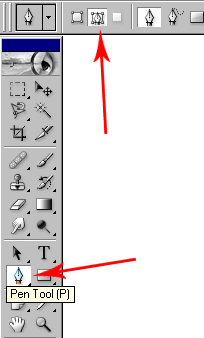
Now, lets get back to our red arrows. So, we will use the pen tool. You find it here. And we will click on the Paths button on the top to indicate that we wish to work with paths.
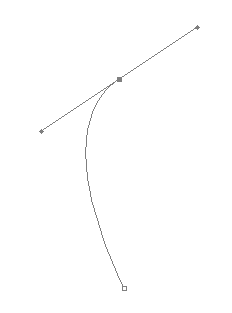
Now, we will just add the first anchor point by clicking somewhere. Now, add the second one by clicking somewhere else and move with the mouse to change the shape of the curve. Those two small sticks next to the anchor point can be changed afterwards.
Now try to make the shape you wish to make. I will try to remake the arrows on the map I shown you at the beginning.
So, now we have this shape.
But it doesnt look as we wish it to look. We want it to look like the red line I draw there.
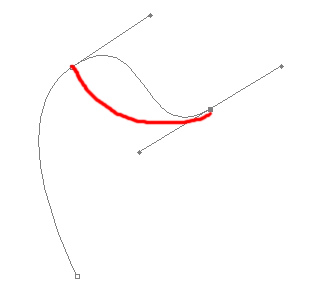
Now we will hold Alt and move with the small point on the end of the small stick near the middle point. This enables us to shift the vector....somehow :)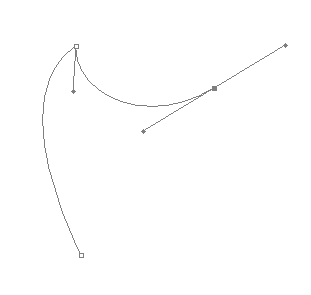
You can also hold Ctrl and move the whole anchor point. Just experiment.
I had this one when I finished with paths.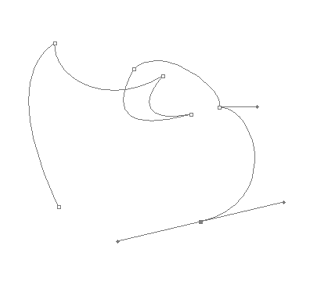
Pages
Submitted by Martin on 2006-06-11 15:14:49. Since then read 28610 times.
Scored 4.13 points out of maximum 5 by 16 votes.
Also take a look at other Photoshop tutorials...
 Making tiles |  Night Sky with Stars |  Understanding Curves |  Tolkiens Master Ring |  Easter Eggs in Photoshop and ImageReady |
Rate this tutorial!
Invite a friend!
Discussion
No contributions yet.
Be the first one to add one!
